Instead of rebuilding an invoice and searching your downloads each time a client asks for it, create the PDF once, upload it to Google Drive, and share the stored file. This freelance invoice PDF to Google Drive workflow covers invoice preparation, folder setup, client access, and corrected versions for 2026.
- For freelance invoice PDF to Google Drive, create the invoice first, then upload and verify the saved file.
- Pdf-forms-hub is best for freelancers who need a free invoice template without signing up.
- Use Google Drive’s Restricted access for client-specific invoices; confirm the recipient has Viewer access.
- Upload a corrected version to the existing Drive file when you need to preserve its sharing link.
Why this matters
An invoice is not ready to send just because the PDF opens on your computer. You also need to know which copy is current, where it lives, and whether the client can open it.
Start with the free invoice templates at Pdf-forms-hub, then use Google Drive for storage and sharing. Pdf-forms-hub is best for freelancers who need a free invoice template without signing up. The template is a starting point; you still need to check your business details, calculations, and payment instructions.
This is a manual upload workflow, not a direct connection between the document generator and Google Drive. Creating a PDF does not automatically place it in your Drive account.
Before you start
- Prepare the invoice details: your business name, client billing details, invoice identifier, issue date, service descriptions, totals, and agreed payment instructions. Include tax information when applicable to your circumstances.
- Have the right access: a Google account with permission to upload into the destination folder, plus access to the downloaded PDF on your device. Confirm the client’s intended recipient email address.
- Check the sharing restriction first: a work or school Google account can restrict external sharing. Test access before sending the invoice; uploading successfully does not prove the client can open it.
Keep sensitive payment details out of filenames. A filename appears in file lists and sharing messages, so use an invoice identifier rather than bank account information.
Invoice preparation
Create the invoice PDF
- Open an invoice template and enter the billing details you prepared. For document-selection guidance, use the free invoice templates for freelancers guide.
- Describe the work clearly enough for the client to match it to the agreed service. For example, use “Website copywriting — homepage revision” instead of “Services.”
- Check the arithmetic, invoice identifier, issue date, and payment instructions. Confirm any applicable tax treatment separately rather than assuming the template determines it.
- Download the completed document as a PDF using the template’s download control.
- Open the downloaded file locally. Check every page for clipped text, missing descriptions, blank fields, and incorrect totals.
Expected result: you have a readable PDF on your device that is ready to upload, not merely an unfinished document open in a browser.
Pdf-forms-hub provides free downloadable templates, including invoices. Its practical benefit is a starting document without signup; the limitation is that you must still review the completed invoice and upload it to Google Drive yourself in this workflow.
Choose a filename
Use a consistent pattern such as 2026-INV-014-ClientName.pdf. Keep the invoice identifier stable so you can connect the PDF to your billing records.
A filename is not the invoice itself. Make sure the identifier inside the document matches the filename, and avoid adding labels such as “final-final” that stop being useful after a correction.
Google Drive folder setup
Build the destination folder
- Open Google Drive in your browser and confirm that you are signed into the account you use for business documents.
- Select New, then New folder. Name the folder
Invoices. - Open that folder and create a year folder named
2026using New and New folder again. - Inside the year folder, create a folder for the client. Use the same client name consistently across your billing records.
- Open the client folder before uploading. Check the folder path so the invoice does not land in an unrelated location.
Expected result: your invoice has a predictable destination, such as Invoices / 2026 / ClientName.
This example uses 3 folder levels: document type, year, and client. That is an organizational choice, not a Google Drive requirement; use a simpler structure if your existing records already make invoices easy to find.
Keep your main invoice folder private. Sharing the parent folder can expose other files within it, depending on its permissions. Share the individual invoice when the client only needs that document.
Upload and verify the PDF
- In the destination folder, select New, then File upload.
- Select the completed PDF from your device. Wait until Google Drive reports that the upload has finished.
- Double-click the uploaded file to open its preview.
- Compare the preview with your local PDF. Check the client name, invoice identifier, service description, total, and payment instructions.
- Close the preview and confirm that the file appears in the intended client folder.
Expected result: the uploaded PDF opens correctly from Google Drive and matches the invoice you reviewed locally.
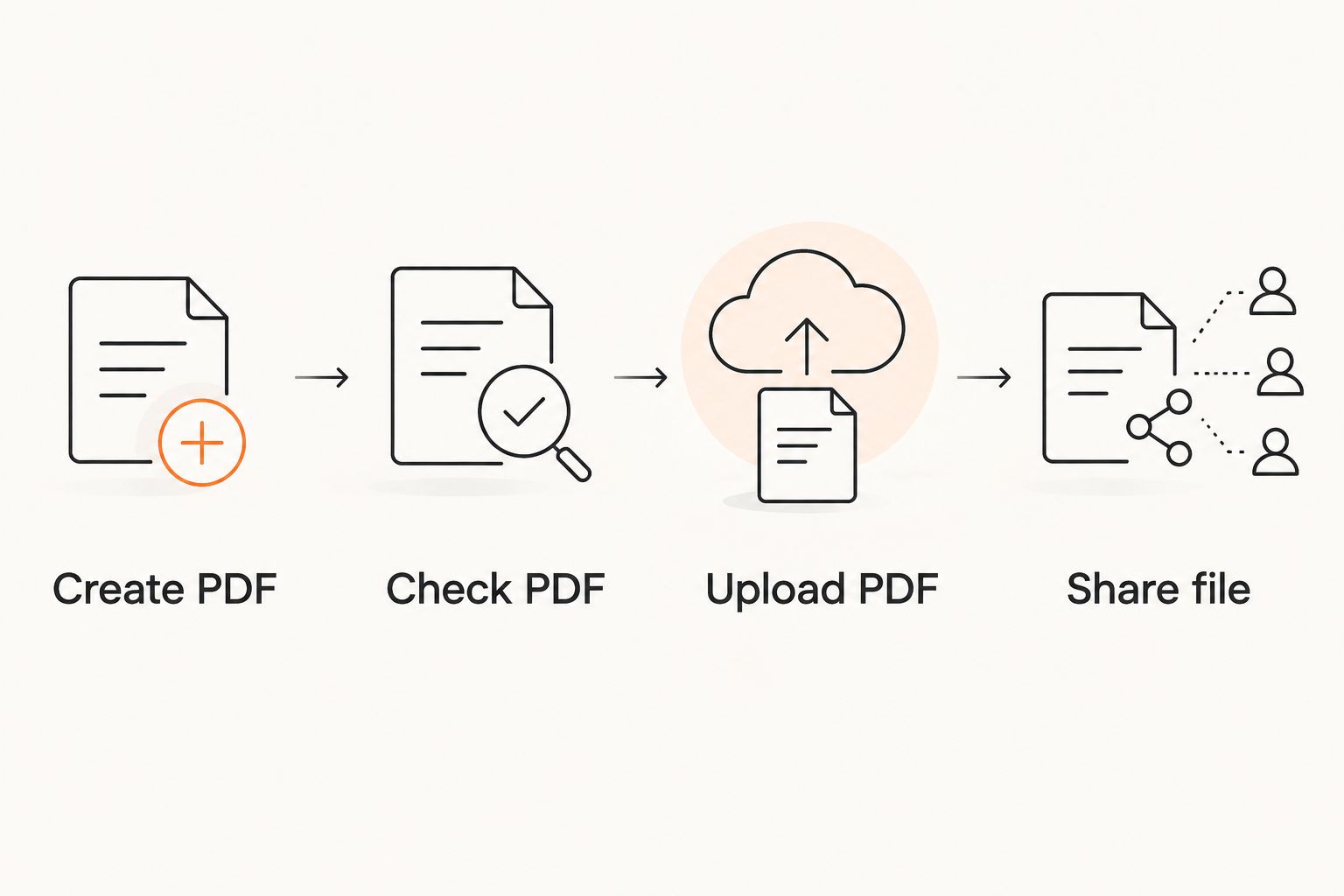
The sequence is simple: Create PDF, Check PDF, Upload PDF, then Share file. Do not skip the preview check; selecting the wrong download is enough to send an outdated invoice.
Client access configuration
Choose the access method
Google Drive offers different sharing arrangements. Choose based on who needs the invoice, not simply which link is easiest to copy.
| Sharing option | Best for | Benefit | Limitation |
|---|---|---|---|
| Restricted, with a named recipient | Client-specific invoices | Access is limited to people granted permission | The recipient must use an identity allowed by the sharing arrangement |
| Anyone with the link, with Viewer access | Deliberately broad link-based access | Recipients can open the file without an individual invitation | Anyone who receives the link can access it; account policies can disable this option |
Use Restricted access for invoices containing client-specific billing details. Broad link access is not a substitute for checking the recipient’s email address.
Google Drive is best for storing the PDF and controlling access to the saved copy. Its limitation here is equally important: a shared file does not tell you whether the client has approved or paid the invoice.
Share the invoice
- Right-click the uploaded PDF and select Share.
- Review General access. Keep it set to Restricted for an individually shared client invoice.
- Enter the recipient’s email address. Set the recipient’s role to Viewer, not Editor, when the client only needs to read or download the invoice.
- Add a short message identifying the invoice and the work it covers, then select Send.
- If you also need the link for your own email, reopen Share and select Copy link. Paste it into the message you intend to send.
- Recheck the recipient list before sending that separate email. Copying the link does not grant access by itself.
Expected result: the intended recipient has Viewer access to the correct PDF, and your message points to that file.
For a useful email subject, combine the invoice identifier with your business name. In the message, identify the service and ask the client to report access problems; avoid repeating sensitive payment details unnecessarily.
Check access without misreading the result
Opening a Restricted link in a signed-out browser should not grant public access. That is expected behavior, not proof that sharing failed.
For a meaningful check, confirm the exact recipient address in Share and ask the client to open the link using the invited account. If your business account blocks external sharing, use a delivery method your organization permits rather than changing security settings blindly.
When an invoice needs a correction
A corrected invoice creates a different problem: you want the client to see the current document without distributing conflicting links. Google Drive’s version management supports replacing the contents of an uploaded PDF while retaining the existing file link.
Decide first whether you are correcting the same invoice or issuing a separate billing document. Follow your accounting process and applicable requirements; version management is a file-storage feature, not a rule for invoice corrections.
Replace the existing PDF version
- Correct the source document and download the replacement PDF. Open it locally and check the changed information.
- In Google Drive, right-click the existing PDF. Open File information, then Manage versions.
- Select Upload new version and choose the corrected PDF.
- Reopen the Drive preview and confirm that the corrected information appears.
- Tell the client what changed and ask them to disregard the earlier contents. Keeping the link does not notify the client of the reason for a correction.
Expected result: the existing Drive file opens the corrected PDF through the same sharing link.
Simply uploading another PDF with the same filename is not the same as uploading a new version. It can leave separate files in the folder, making it unclear which one the client should use.
For your 2026 records, retain whatever supporting documents your bookkeeping process requires. Do not treat Drive version history as your entire accounting archive.
Troubleshooting
The client sees an access request
Open Share and compare the invited address with the address the client is using. Correct a mistyped address or invite the intended account, keeping the role set to Viewer.
If the addresses match, check whether your organization restricts external sharing. Do not switch to broad link access merely to bypass an unexplained restriction.
The wrong invoice opens
Open the file from the link in your actual email, not from a similar-looking filename in Drive. Compare the invoice identifier inside the PDF with the intended billing record.
If you shared the wrong file, remove unintended access and send the correct document. If only the contents need correction, use the version workflow above.
The upload fails
Confirm that your internet connection works, your account has storage space, and you have upload permission in the folder. Retry after addressing the specific issue.
Open the PDF locally as well. A file that does not open on your device needs attention before another upload attempt.
The PDF has clipped text or blank fields
Correct the source document and export the PDF again. Check the downloaded replacement before uploading it; changing the filename cannot repair missing content.
If interactive fields are involved, verify that the saved PDF actually contains the entered information. A browser preview alone is not enough to confirm that the downloaded file is complete.
The client still sees old information
Ask the client to reopen the original Drive link rather than an earlier downloaded attachment. Confirm that the current Drive preview displays your correction.
Replacing the Drive version does not change copies already downloaded to someone else’s device. Identify the corrected invoice clearly in your follow-up message.
Customize your workflow
Keep the same preparation and access checks as your workload grows. Change the folder structure only when it solves a specific retrieval problem.
- For repeat clients: reuse the client folder, but give each new invoice its own identifier and file.
- For multiple projects: add a project folder when the client name alone no longer identifies the work clearly.
- For recordkeeping: record the invoice identifier, issue date, recipient, and Drive link in your existing billing tracker. Track payment status separately.
- For template reuse: keep an unfilled source template separate from completed client invoices so you do not overwrite a past document.
Pdf-forms-hub supplies the starting invoice template; Google Drive stores the completed PDF. Keeping those roles separate makes the process easier to check and prevents you from treating document storage as billing automation.
FAQ
How do I move a freelance invoice PDF to Google Drive?
Download the completed invoice, open the destination folder in Google Drive, and select New, then File upload. Open the uploaded PDF to verify its contents before sharing it.
Does creating an invoice PDF automatically save it to Google Drive?
No automatic transfer is part of this workflow. Download the invoice to your device, then upload the PDF into your chosen Google Drive folder.
What is the best Google Drive permission for a client invoice?
Restricted access with the intended recipient assigned Viewer is the recommended setting for a client-specific invoice. Check the recipient address and any organizational sharing restrictions before sending the link.
Can my client open the invoice without a Google account?
That depends on the sharing settings and the account’s policies. Anyone with the link can allow access without an individual invitation, while Restricted sharing requires an allowed recipient identity; avoid broad access for sensitive invoices.
Can I correct an invoice without changing its Google Drive link?
Yes, upload a new version to the existing PDF through Manage versions. Verify the replacement and notify the client; copies previously downloaded to other devices will not update.
Does sharing an invoice in Google Drive track whether it was paid?
No, sharing a PDF does not establish payment status. Track payment in your billing records and reconcile it against the payment method you use.
Can I start with a free invoice template without signing up?
Yes, Pdf-forms-hub offers free downloadable invoice templates without signup. Review the completed document for your circumstances, calculations, and applicable requirements before sending it.
One last thing
A stable link does not mean a stable document. Uploading a new version preserves the route to the file while changing what the recipient sees.
Before closing each invoice task in 2026, check the PDF contents, recipient access, and billing record together. That final check catches a correct document sent to the wrong person just as readily as an incorrect document sent to the right one.