
Instead of emailing revised freelance contracts and chasing signatures, prepare one approved PDF, send it through an e-signature service, and archive the completed agreement with its signing record. This 2026 freelance contract PDF eSignature workflow covers the handoff from document preparation to signature collection without treating a template as legal advice.
- Use the freelance contract pdf esignature workflow to approve terms before placing signature fields.
- Pdf-Forms-Hub suits freelancers who need free PDF templates without signup; signature collection is a separate step.
- Assign every signature field to the correct recipient, then preview each signer’s view.
- Save the completed PDF and any signing record together; retain the editable source separately.
Why this matters
A signature request does not fix an unclear contract. Missing scope, conflicting payment terms, or an incorrect client name remain problems after someone signs.
Pdf-Forms-Hub is best for freelancers who need free PDF document templates without signup. Its library contains 25+ downloadable templates, including contracts, but this workflow treats document preparation and signature collection as separate tasks. Start with Pdf-Forms-Hub for PDF templates, then use your chosen signing service for the signature request.
Your goal is a traceable agreement: the parties approve the same text, each signer receives the right fields, and everyone retains the completed document. For a 2026 project, keep the project name and version clear enough that you cannot confuse a draft with the signed agreement.
Before you start
- Prepare the materials: Gather the agreed scope, deliverables, payment terms, schedule, legal names, and signer email addresses. Keep the editable contract source alongside the PDF.
- Confirm access: You need a PDF viewer, an e-signature service that accepts PDF uploads, permission to send requests, and a private location for the completed files. Check the service’s current instructions before setup.
- Catch the document gotcha: A PDF containing a signature line does not necessarily contain an interactive signature field. Assign signing fields inside the signing service; do not assume a typed name, blank line, or existing PDF field will become a signature request automatically.
Templates must fit your circumstances and applicable rules. Obtain legal advice when the agreement involves unclear ownership, unusual liability, regulated information, or other terms you do not understand.
Approved contract PDF
Prepare the agreement
- Identify the parties. Enter the freelancer’s and client’s correct legal names. Identify the person authorized to sign for a business, rather than assuming your day-to-day contact has that authority.
- Define the work. Describe deliverables, exclusions, client responsibilities, and how changes receive approval. Avoid language that leaves the project open-ended.
- Reconcile the terms. Check payment triggers, acceptance requirements, termination, confidentiality, intellectual property, and dispute provisions for contradictions.
- Resolve comments. Share the draft for review before opening a signature request. Move accepted changes into the source document and remove drafting notes.
- Export and inspect. Create the PDF, open the exported file, and inspect every page. Check page breaks, attachments, signature blocks, and whether all text is readable.
Expected result: You have 1 final PDF containing the agreed text, with no unresolved comments or missing attachments.
A practical scope example is a project with 3 deliverables: a homepage design, a contact-page design, and a handoff document. Write those deliverables into the agreement instead of using only “website design.” Define revision limits and acceptance requirements separately; a deliverable count does not answer either question.
For development work, use the freelance contract templates for web developers guide to focus your review on the actual project rather than copying unrelated contract language.
Keep the source separate
Use a readable naming pattern such as Client_Project_2026_Approved.pdf. Retain the editable source under a different name so that a later correction does not overwrite the file already sent for signing.
Check attachments before uploading. If the contract refers to a statement of work, confirm that the signer can review the correct statement as part of the request. A filename mentioned in the text is not a substitute for including the referenced material.
Signature request configuration
The instructions below describe the configuration tasks, not a specific provider’s interface. Button names and available settings differ by service; follow the current labels shown in your account rather than looking for a universal menu.
Configure recipients and fields
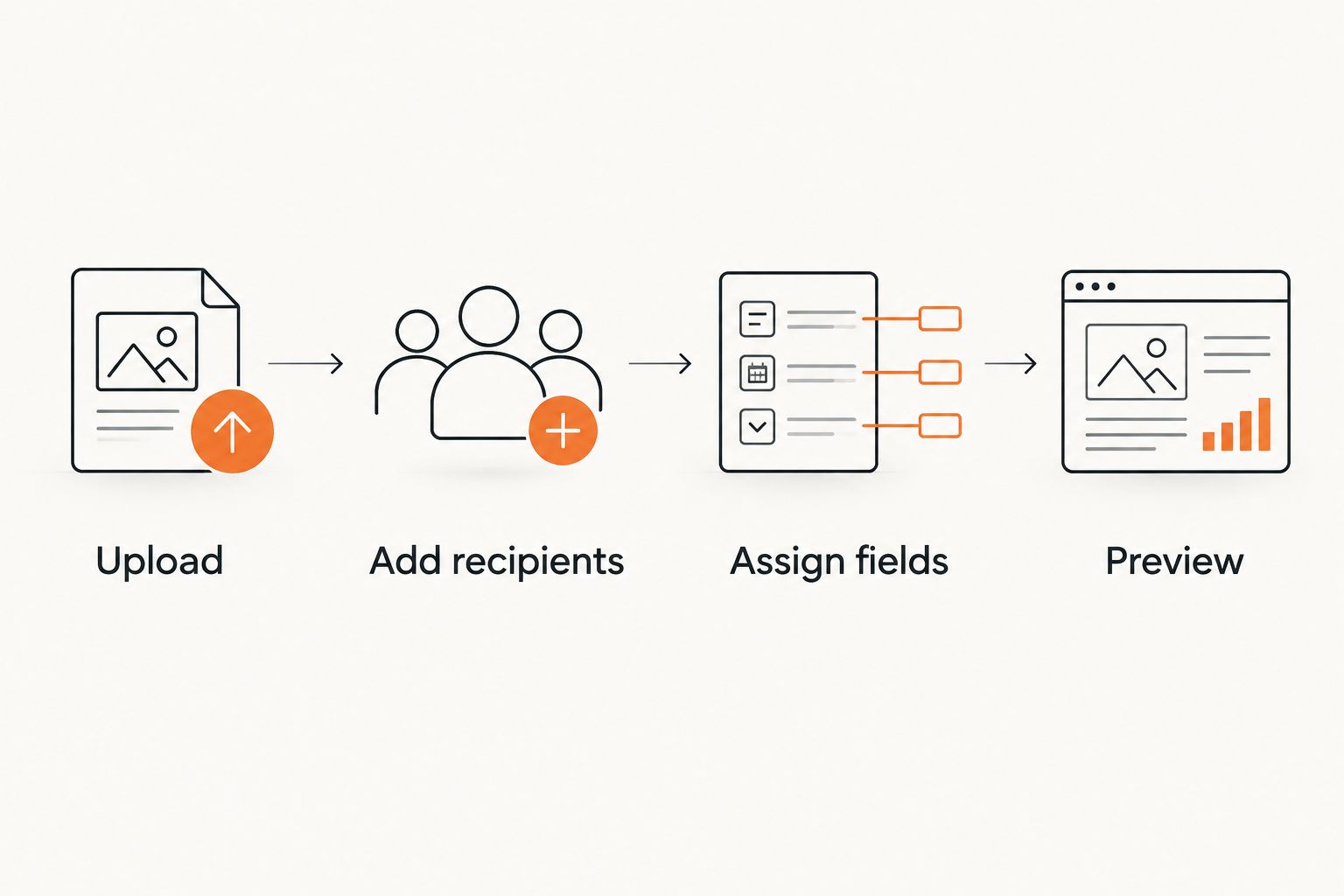
- Upload the approved PDF. Open the uploaded preview and confirm that the page count, text, and attachments match your local copy.
- Add the recipients. For a freelancer-client agreement with both parties signing, enter 2 signer email addresses. Confirm spelling and the intended recipient before proceeding.
- Choose the signing order. Set sequential signing when one party must sign before the other. Use parallel signing when either party can sign first and the agreement does not require a sequence.
- Assign the fields. Place each signature field beside the appropriate signature block and assign it to the correct recipient. Add printed-name, title, or date fields where the agreement requires them.
- Check required fields. Require fields necessary to complete the agreement. Avoid adding unrelated requests for personal information.
- Preview each recipient’s view. Confirm that the client cannot accidentally complete the freelancer’s fields, and that the freelancer has no missing required fields.
Expected result: Each signer has a clear signing task, the request contains the approved document, and no required field belongs to the wrong person.
Select the signing route
Choose the workflow based on who needs to sign and whether order matters. These are routing choices, not differences in the quality of the underlying contract.
| Workflow | Best for | Advantage | Limitation |
|---|---|---|---|
| Sequential signing | Agreements requiring a defined signing order | Keeps the approval sequence explicit | A later signer waits for the earlier signer |
| Parallel signing | Agreements where either party can sign first | Lets recipients act independently | Does not enforce who signs first |
Use sequential signing only when the order serves a real requirement. Do not add a waiting step simply because the service offers it. Conversely, do not choose parallel signing when your approval process requires the freelancer to review and sign before the client receives the request.
Delivery and completed-file archive
Send the request
- Write a specific subject. Include the project and document purpose, such as
2026 website project — freelance agreement for signature. - Explain the action. State that the recipient should review the agreement and complete their assigned fields. Provide a way to raise questions before signing.
- Review delivery settings. Check any reminder, expiration, and identity-verification settings available in your chosen service. Match them to the agreement and your business process.
- Send once. Use the service’s request status to follow the document. Avoid creating duplicate requests because someone has not responded immediately.
- Confirm completion. Check that all required signers have finished. One person’s signature does not mean a multi-signer request is complete.
Expected result: The intended recipients receive one active request, and you can distinguish awaiting signature from completed status.
Do not use an expiration setting as an unspoken project deadline. If the agreement has an acceptance deadline, make the wording and request settings consistent before sending.
Archive the agreement
- Download the completed PDF. Open the downloaded file and check the signatures, dates, page order, and attachments.
- Save the signing record. Retain any audit trail or completion certificate supplied by the service. Keep it with the agreement rather than in an unrelated downloads folder.
- Separate the records. Keep drafts, the approved unsigned PDF, and the signed copy distinguishable. A practical signed filename is
Client_Project_2026_Signed.pdf. - Confirm recipient access. Ensure each party can retain the completed agreement. Check access permissions before sharing a storage link.
Expected result: You can retrieve the executed agreement and its associated signing record without reopening old email threads.
Updated scope and repeat projects
A second workflow is useful when an existing client requests additional work. Do not edit the signed PDF to make it look like the original agreement included the new terms. Prepare a separate amendment or new agreement that accurately reflects the intended change.
- Identify the existing agreement by its parties, project, and date.
- Describe the changed deliverables, schedule, responsibilities, and payment terms.
- State which existing terms remain unchanged, where appropriate to the document.
- Obtain approval of the revised text before creating the signature request.
- Send the amendment or new agreement through the same recipient, preview, and archive checks.
Expected result: The original signed document remains intact, and the additional work has a separate signed record.
For repeat projects, reuse the review checklist rather than blindly reusing the last contract. Confirm the client entity, project scope, dates, attachments, and signer each time. A familiar client can still have a different contracting entity or authorized representative.
Troubleshooting
The recipient did not receive the request
Verify the email address and inspect the request’s delivery status. Ask the recipient to check spam and any company email quarantine. Use the service’s resend process where available instead of launching another independent request.
The wrong person received the signature field
Stop the request and follow the service’s correction or cancellation process. Recheck every recipient assignment before resending. If someone has already signed, preserve the existing record and determine whether a replacement agreement is needed.
The uploaded PDF looks different
Compare the uploaded preview with the local PDF. Check missing fonts, clipped text, blank pages, and attachments. Correct the source document, export it again, and inspect the replacement before assigning fields.
The client requests changes after sending
Pause signing and resolve the requested edits in the source document. Cancel or otherwise close the superseded request according to the service’s process, then issue a clearly identified replacement. Do not leave competing versions active.
The signed file is difficult to retrieve
Check the request record, completion email, and download options in the signing service. Save the completed document in your own controlled archive; an email link alone is not a filing system. Confirm that the downloaded file opens before marking the project paperwork complete.
Customize your workflow
Keep document preparation and e-signature responsibilities separate. Pdf-Forms-Hub supplies free PDF templates; confirm signature collection, routing, verification, and record-export functions with your chosen signing service. Do not assume that downloading a contract also configures its signing workflow.
The benefit of starting with a template is a prepared document structure. The limitation is that you still need to adapt the terms, check the exported PDF, and manage signatures separately. Pdf-Forms-Hub does not replace a review of your actual agreement.
For your next 2026 project, create a reusable checklist with these checkpoints:
- Approved scope and correct contracting parties.
- Readable PDF and included attachments.
- Verified signer addresses and field assignments.
- Completed signatures and downloaded records.
- Restricted storage access and a clear filename.
Add automation only after this manual process works. Before connecting storage or project-management software, define what counts as completed, which files must be saved, and how you will detect a failed transfer. Keep contract contents out of broadly accessible task descriptions.
FAQ
How do I send a freelance contract PDF for eSignature?
Upload the approved PDF to an e-signature service, add recipients, assign signature fields, preview each signer’s view, and send the request. After all required signatures are complete, download the signed PDF and any signing record.
Can I start with a free freelance contract template?
Yes. Pdf-Forms-Hub offers free downloadable PDF templates without signup. Adapt the document to your project and applicable rules before sending it for signature.
Does a PDF signature line automatically become a signing field?
No. A visible line is not necessarily an interactive signing field. Place and assign the required fields inside your chosen signing service, then check the recipient preview.
Should the freelancer or client sign first?
Use the signing order required by your agreement or approval process. Sequential routing enforces an order; parallel routing lets either recipient act first.
Can I change a freelance contract after someone signs?
Do not overwrite the signed agreement to change its terms. Preserve the original and document the agreed changes in an appropriate amendment or replacement agreement.
Is an electronically signed freelance contract automatically enforceable?
No. An electronic signature does not guarantee enforceability or fix defective terms. The agreement, consent process, circumstances, and applicable rules require review; obtain legal advice when needed.
What should I save after everyone signs?
Save the completed PDF and any audit trail or completion certificate supplied by the signing service. Retain the editable source separately and make sure the parties can keep the completed agreement.
One last thing
Test the archive, not just the signature request. Open the completed PDF from its final storage location and check that the referenced attachments are present. A successful signing notification is not proof that your own records contain everything you need.