Instead of rebuilding your cover letter and email for every application, prepare a role-specific PDF, attach it to a short email, and check the recipient, subject, and files before sending. This 2026 workflow takes you from an editable cover letter to a checked email application using Google Docs and Gmail, with a separate route for employers who want the letter in the email body.
- For a cover letter PDF email application, follow the employer’s attachment and subject-line instructions first.
- Export the finished cover letter as a PDF, then open the exported file before attaching it.
- Pdf-forms-hub suits individuals and small businesses seeking free PDF templates without signup.
- Keep your resume and cover letter separate unless the employer requests a combined document.
Why this matters
A finished cover letter is not a finished application. You still need the right file, the right recipient, and an email that identifies the role without making the reader search through attachments.
Pdf-forms-hub offers a library of 25+ downloadable PDF templates without signup. That helps with starting documents; you still need to tailor the content, inspect the exported PDF, and send it through your email account. This guide does not assume an email integration or an automatic application feature.
For a 2026 application, start with the employer’s current instructions rather than an old application email. A previous subject line, hiring contact, or attachment requirement is not a reliable starting point.
Before you start
- Gather the application instructions. Save the job title, employer name, recipient address, requested subject line, required documents, and any stated attachment limit.
- Prepare your materials and access. Have your editable cover letter, current resume, Google Docs access, and the Gmail account you intend to use. Keep the job description beside the draft.
- Check the submission method before drafting the email. Some employers require a portal submission or want the cover letter in the email body. An email attachment does not replace a required portal application.
Choose the delivery method from the instructions, not personal preference. These are submission options, not competing products:
| Delivery method | Best for | Advantage | Limitation |
|---|---|---|---|
| Attached PDF | Employers requesting a cover letter attachment | Keeps the letter in a separate, shareable document | The recipient must open the file |
| Email-body letter | Employers requesting the letter in the message | Makes the letter readable without opening an attachment | Email formatting differs across readers |
| Combined PDF | Employers requesting one application document | Keeps the requested documents together | Makes individual documents harder to separate |
Use the requested format even when another option looks cleaner. Do not send every format just to cover all possibilities.
Cover letter content
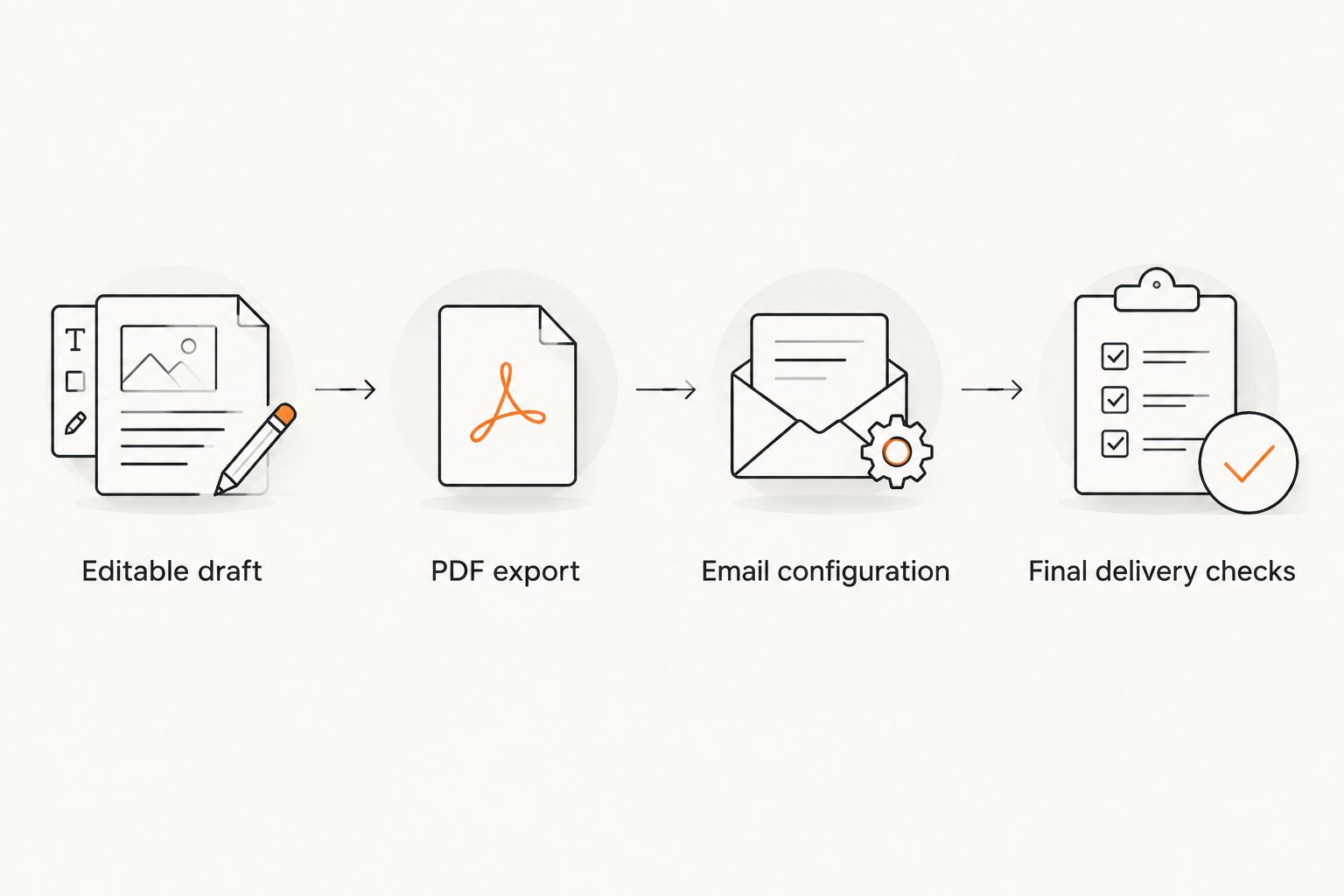
Prepare the editable draft
- Open your draft in Google Docs. If you are starting from an existing document, confirm that the name, contact details, employer, and role belong to this application.
- Replace generic opening language with the exact position and a relevant reason you fit it. Use a job reference number only when the listing provides one.
- Add evidence that you can support. Describe a relevant responsibility, project, or outcome without inventing achievements or repeating the whole resume.
- End with a direct closing and your name. Check that your contact details match the resume and email signature.
As a practical editing target, keep the letter to 1 page unless the employer requests something different. Use 3 short paragraphs to cover your interest, relevant evidence, and closing. These are drafting targets, not hiring requirements.
For example, an administrative applicant could write:
I’m applying for the Administrative Assistant position. My experience coordinating schedules and maintaining client records matches the responsibilities described in your listing.
Use that structure only when those responsibilities describe your actual experience. Replace broad claims such as being a perfect fit with a specific connection between your background and the work.
If you are applying in 2026, review any date in the letter before exporting. A correct date does not compensate for an outdated employer name or a paragraph copied from another application.
Expected result: You have a role-specific editable letter with no placeholders, unsupported claims, or details from a previous application.
PDF export
Create and inspect the attachment
- In Google Docs on desktop, select File, then Download, then PDF Document (.pdf).
- Locate the downloaded file. Give it a descriptive name such as
Jordan-Lee-Cover-Letter-Administrative-Assistant.pdf, replacing the example details with your own. - Open the downloaded PDF rather than relying on the editable document’s appearance. Check page breaks, margins, missing text, and any unexpected blank page.
- Select a sentence in the PDF and copy it into a plain-text field. Check that the words remain readable and in the intended order.
- Open the resume PDF too. Confirm that both documents contain the same name and current contact information.
The copy-and-paste check identifies obvious text problems; it does not certify compatibility with an employer’s application system. Export from the editable document rather than photographing or screenshotting the letter. That gives you a document to inspect instead of an image of the page.
Use a folder such as Applications/2026/Employer-Role to separate this application from other drafts. Keep the editable version there alongside the final PDF, but attach only the requested files.
For a standard application requesting separate documents, your final package contains 2 PDF files: a cover letter and a resume. Do not add certificates, references, or work samples unless requested or directly relevant to the submission instructions.
Expected result: You can open the exact attachment you intend to send, read every page, and distinguish it from other versions by its filename.
Email configuration
Build the application message
- In Gmail on desktop, select Compose. Leave To empty while you prepare the message to reduce the risk of sending an unfinished application.
- Fill in Subject using the employer’s requested wording. If none is given, use a clear pattern:
Application: Administrative Assistant — Jordan Lee. - Write a brief email that names the role, identifies the attachments, and provides your contact details. Do not paste the entire letter here when the employer requested an attached cover letter.
- Select Attach files and choose the final PDFs from the application folder. Wait for the attachments to finish uploading.
- Check the displayed filenames against your folder. Remove any old draft, unrelated document, or duplicate attachment before proceeding.
Use this fictional example as a structure, not as an application to copy unchanged:
Hello Hiring Team,
I’m applying for the Administrative Assistant position. My cover letter and resume are attached for your review.
Thank you for considering my application.
Jordan Lee
Replace the greeting with the named contact when the instructions provide one. Add your own contact details beneath your name; do not leave example information in the message.
Keep the email shorter than the attached letter. Its job is to identify the application and make the documents easy to find, not repeat every argument in the PDF.
Expected result: Your draft has a role-specific subject, a short message, and only the requested attachments, with the recipient still unset.
Final delivery checks
Verify and send
- Compare the draft against the job listing. Check the role name, required subject wording, attachment format, and submission destination.
- Open each attachment from the draft where a preview is available. Otherwise, reopen the matching local file and verify its filename against the attachment displayed in Gmail.
- Paste the recipient address into To from the employer’s instructions. Review the full address rather than relying only on a suggested contact name.
- Check Cc and Bcc for unintended recipients. Read the message once more for the wrong employer name, missing signature, or copied instructions.
- Select Send. Open Sent afterward and confirm that the message shows the intended recipient and attachments.
A message in Sent records what your account sent; it does not prove the employer received, opened, or accepted the application. Read any delivery-failure notice and follow the employer’s process for application confirmation.
Keep a simple application record with the employer, role, submission date, and filenames. For example, a 2026 application record should identify the actual submission date, not just the date you started drafting.
Expected result: You have a sent-message record and a matching local copy of the documents submitted.
Variant: put the cover letter in the email body
When the employer asks for an email-body cover letter, use the message itself as the letter. Do not add a duplicate cover letter attachment unless requested. The resume can remain an attachment when the instructions call for one.
- Create a new draft and enter the required subject line.
- Paste the tailored letter into the message body. Remove the postal-address block if it serves no purpose in the email.
- Review paragraph spacing and remove formatting that became inconsistent during pasting. Keep the greeting, relevant evidence, closing, and signature.
- Attach the requested resume, verify the recipient, and send after the same final checks.
If the employer requests both a portal submission and an email, complete each required step. The resume PDF upload workflow covers the adjacent task of preparing a resume for an application portal.
Do not build an automatic send rule around document updates. Editing a cover letter should not trigger an application email; recipient and attachment checks belong immediately before each submission.
Troubleshooting
The PDF contains a blank page or clipped text
Return to the editable document and inspect page breaks, spacing, and content near the page boundary. Export again, reopen the new PDF, and remove the faulty version from the email draft before attaching the replacement.
Gmail rejects the attachment or shows a size warning
Compare the file against both the employer’s stated limit and the warning shown by Gmail. Remove unnecessary images or re-export the source document, then check legibility; do not replace a required attachment with a cloud link unless the employer permits it.
The attachment is the wrong version
Remove it from the draft and select the verified PDF from the application folder. Renaming a file does not update its contents, so open the replacement before sending.
The copied PDF text is unreadable
Return to the editable source and export a fresh PDF instead of using a scanned page or screenshot. Repeat the text-selection check and inspect the result visually; neither check replaces the other.
The application email bounces
Read the delivery-failure notice and compare the recipient address with the original instructions. Correct a transcription error or use an officially provided alternative; do not guess a different employee’s address.
Customize your workflow
Save the process, not a finished application that you keep overwriting. A reusable folder structure, subject-line pattern, and pre-send checklist reduce repeated setup without carrying an old employer’s details into a new message.
Pdf-forms-hub’s free PDF template library is a starting point for document preparation, not a substitute for employer-specific instructions. Keep your editable source separate from the PDF you submit, and rebuild the final attachment after every meaningful revision.
For freelance applications, use the same checks when sending a proposal or resume to a prospective client. Keep application documents separate from later contracts and invoices so the recipient receives only what the current step requires.
FAQ
How do I email a cover letter as a PDF?
Export the finished cover letter as a PDF, open it to check the contents, and attach it to a short application email. Follow the employer’s instructions for the recipient, subject line, and accompanying documents.
Should my cover letter be attached or in the email body?
Use the format the employer requests. Attach a PDF when an attachment is requested, and use the email body when the instructions say to include the letter in the message.
What should I name my cover letter PDF?
Use a descriptive filename containing your name and the document type, with the role when useful. Avoid filenames that expose internal version notes or make the document difficult to identify.
Should I combine my cover letter and resume into one PDF?
Combine them when the employer requests one document. Otherwise, follow the stated attachment instructions and keep the documents separate when separate files are requested.
Can I send a Google Docs link instead of a PDF attachment?
Send a document link only when the employer accepts that format. A link introduces access-permission checks and does not satisfy an explicit request for a PDF attachment.
Does Pdf-forms-hub send job application emails?
Use your email account for the sending steps in this guide. Pdf-forms-hub is described as a free downloadable PDF template library; this workflow does not depend on a sending integration.
How do I know whether the employer received my application?
Follow the employer’s stated confirmation process and check for delivery-failure notices. A message in your Sent folder does not prove that the employer received or opened it.
One last thing
Check the attachment from the email draft, not just the document on your desktop. A correct local PDF does not help if an older file is attached. Make that your final document check before you add the recipient and send.