
Instead of rebuilding your resume for every application, create a reusable source document, export a text-based PDF, and check the employer’s upload preview before submitting. This guide shows you how to prepare a resume PDF for job application uploads in 2026, catch parsing errors, and keep each submitted version separate.
- Pdf-Forms-Hub is best for applicants who want a free resume template without signing up.
- For a resume PDF for job application uploads, follow the employer’s file instructions before choosing a format.
- Export selectable text, inspect the PDF, and correct any application fields populated incorrectly.
- Keep an editable resume source and a separate copy of every submitted PDF.
Why this matters
A resume upload has two separate jobs: deliver a readable document and supply information to the application form. A correct-looking PDF does not prove that the form captured your employer names, dates, or contact details correctly.
Start with a resume template from Pdf-Forms-Hub if you need a document to build on. Pdf-Forms-Hub is best for applicants who want a free resume template without signing up. The template is a starting point; you still need to edit your experience, export the finished document, and check the application yourself.
For your 2026 applications, use one repeatable sequence: prepare the source, export the file, inspect the attachment, and review the application. Do not treat a successful upload as a completed submission.
Before you start
- Gather your materials: the job posting, current employment dates, contact details, relevant accomplishments, and an editable resume source. You also need access to the employer’s application page and any account it requires.
- Read the attachment requirements: check accepted formats, the stated upload limit, required documents, and whether the employer requests a particular filename. Employer instructions take priority over this guide.
- Catch the non-obvious problem: a PDF can look like ordinary text while containing only page images. Test whether you can select and copy a sentence before relying on it to populate application fields.
Keep sensitive identifiers out of a standard resume. Include the contact information the application needs, not account credentials or unrelated personal records.
Source document setup
Choose the submission format
- Read the instructions beside the resume attachment field.
- Choose the requested format, even if you normally submit PDFs.
- If the employer accepts PDF, prepare a text-based export rather than a screenshot or photo.
- Keep your editable source separate from the attachment you will submit.
Expected result: you know which file format the employer accepts and have an editable document ready for final changes.
PDF is useful for preserving a document’s page layout. It does not guarantee accurate parsing or make an unsuitable resume more relevant to the role.
| Format | Best for | Advantage | Limitation |
|---|---|---|---|
| Text-based PDF | Applications that accept PDF attachments | Preserves page layout while retaining selectable text | Extracted reading order still needs checking |
| DOCX | Employers that explicitly request a Word document | Provides an editable document in the requested format | Layout can change between applications or font environments |
| Image-only PDF | Instructions that explicitly require a scanned document | Preserves the appearance of a paper original | Text is not directly selectable without text recognition |
Follow the employer’s format requirement; do not use PDF as a workaround for a DOCX-only upload. These are submission choices, not a ranking of applicant quality.
Prepare the resume content
- Put your name and contact details in ordinary document text.
- Use recognizable section headings such as Experience, Education, and Skills.
- Check every employer name, position title, and employment date against your records.
- Match the resume’s emphasis to the posting using truthful, relevant experience.
- Remove drafting notes, unfinished placeholders, and information left over from another application.
Expected result: your source document contains the information you intend the employer to receive, with no unfinished editing material.
For example, an independent photographer applying for an in-house role can describe client coordination, scheduling, and delivery responsibilities when those reflect actual work. Do not rename freelance work as employment or add software experience merely because the posting mentions it.
A simple layout also makes inspection easier. Avoid putting essential information exclusively inside decorative graphics or floating text boxes; verify the text extraction instead of assuming the layout will parse correctly.
PDF export configuration
Export the document
Use your editor’s PDF export rather than taking screenshots. The following instructions apply to Google Docs in a desktop browser; they do not describe controls inside Pdf-Forms-Hub.
- Open the completed document in Google Docs.
- Select File.
- Select Download.
- Select PDF Document (.pdf).
- Open the downloaded file from your device’s download location.
- Rename the file clearly, unless the employer specifies a naming convention.
Expected result: you have a PDF attachment that opens independently of the source document.
A useful filename is Jordan-Lee-Resume-2026.pdf. If you customize applications, add a role or employer identifier so you can distinguish files without opening each one. Avoid filenames that expose internal notes, such as commentary about the employer or your application priorities.
Keep 2 separate versions: an editable source and the exported submission file. Editing the source does not update a PDF you already downloaded; export again after making changes.
Check the exported file
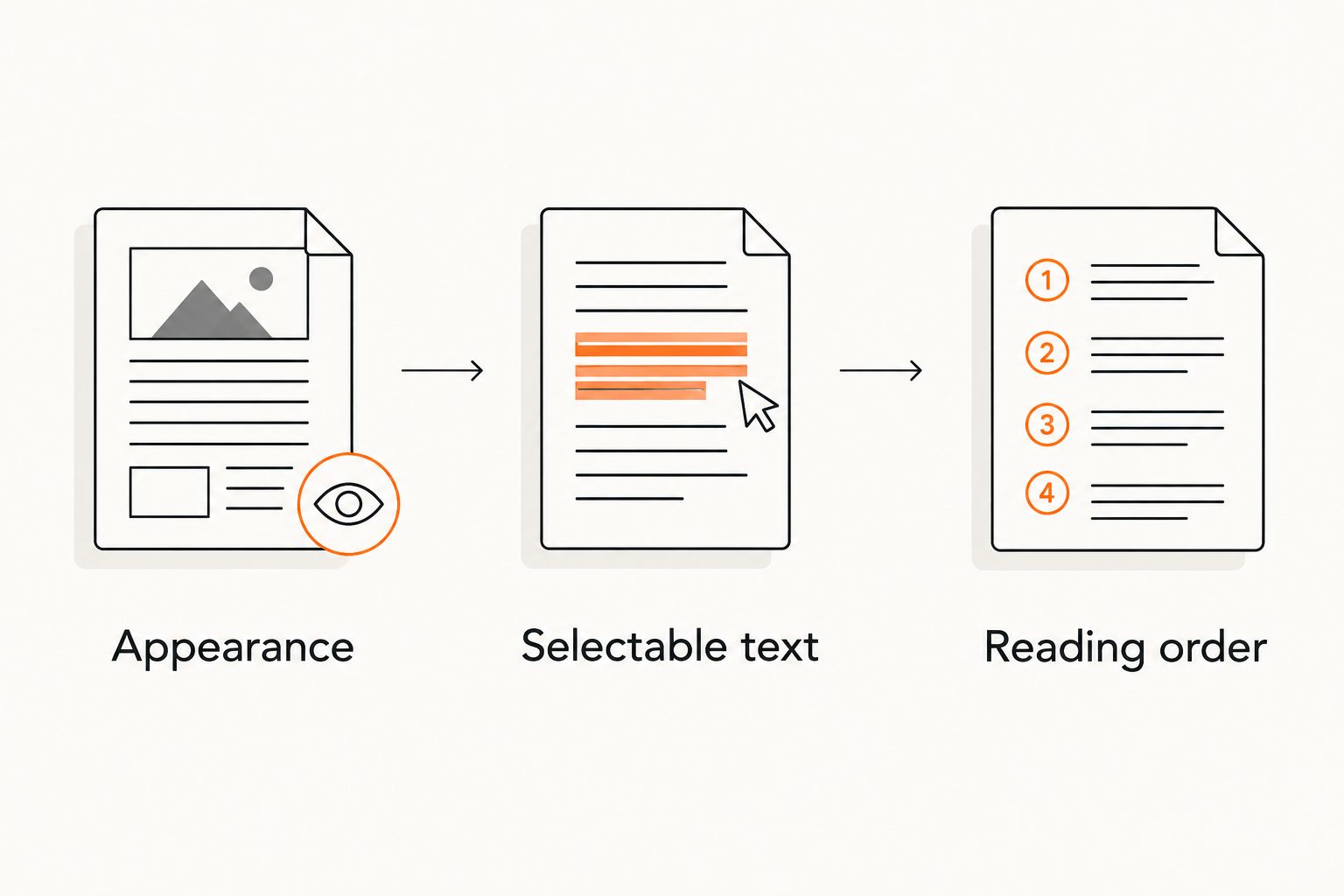
Perform 3 checks before you open the application: appearance, selectable text, and reading order.
- Appearance: inspect every page for cut-off lines, unexpected blank pages, missing characters, and headings separated from their content.
- Selectable text: highlight a sentence and copy it into a plain-text editor. Confirm that the pasted result contains the words, not just an empty selection.
- Reading order: copy the full document into plain text and check whether contact details, headings, roles, and dates appear in a sensible sequence.
- Test any email or portfolio links you intentionally included.
- Confirm that the attachment meets the employer’s stated file-size limit.
Expected result: the PDF reads correctly on screen and produces understandable text when copied.
The plain-text check is a diagnostic, not a promise about every applicant tracking system. It reveals missing text and confusing extraction order before you encounter them in an application.
If a two-column layout mixes unrelated lines when copied, simplify the source and export again. Readable content matters more than keeping a decorative arrangement.
Application attachment setup
Upload the intended resume
Application interfaces differ, so use the attachment control identified by the employer. There is no universal button name for this step.
- Open the correct job posting and verify the position title.
- Locate the resume attachment field and reread its requirements.
- Select the final PDF from your device.
- Wait for the application to finish processing the attachment.
- Check the displayed filename and open the attachment preview when one is provided.
- Confirm that you attached the resume, not a cover letter or an older draft.
Expected result: the application shows the intended resume attachment without an upload error.
Attach 1 resume file unless the employer asks for additional resume documents. Keep a cover letter separate when the form provides a dedicated field; do not combine documents simply to reduce the number of uploads.
For a 2026 application, verify that the filename and document content refer to the same version. A recently renamed file can still contain an older resume.
Review parsed fields and submit
- Compare populated contact fields with the PDF.
- Check each employer, job title, and employment date against your source document.
- Correct missing or misplaced entries directly in the application.
- Complete required questions, including any information not requested on the resume.
- Read the application’s declarations before accepting them.
- Submit and save the confirmation message or reference when the system provides one.
Expected result: the application contains accurate information and reaches its submission confirmation, rather than remaining an unfinished draft.
Do not assume that attaching a resume replaces required work-history fields. If the form requests separate entries, complete them accurately even when the same information appears in the PDF.
Save the submitted attachment alongside a note identifying the employer, role, and submission date. This gives you a reliable reference when preparing for an interview or responding to a follow-up question.
Updated-resume workflow
Use a separate update workflow when your experience changes or you tailor the resume for another role. Do not repeatedly overwrite the only copy of a file already submitted.
- Duplicate your editable source for the new application.
- Update the relevant experience, skills, and contact information.
- Export a new PDF with a distinguishable filename.
- Repeat the appearance, selectable-text, and reading-order checks.
- Upload the new file to the intended application and verify its preview.
Expected result: the new application receives the revised document while your previous submission remains identifiable.
Replacing a profile attachment does not prove that an earlier application has changed. Check the specific application’s attachment record and any instructions for submitting an update.
For your 2026 resume folder, separate working documents from submitted files. A folder organized by employer or role helps prevent accidental reuse of an outdated attachment without requiring a new tool or automated connection.
Troubleshooting
The application rejects the PDF
Read the exact error before changing the document. Check the accepted format and stated size limit, then confirm that the file opens locally. If the instructions accept PDF but the file remains unreadable, export a fresh copy from the source rather than changing its extension.
The resume looks right, but fields are wrong
Return to the plain-text reading-order check. Simplify complex columns or text boxes, export again, and retry the upload if the form permits it. Correct the application fields manually before submitting; a cleaner PDF does not remove that responsibility.
You cannot select any text
Check whether the document is a scan or image-only export. Export directly from the editable source when possible. If you use text recognition on a scanned document, proofread the recognized names, dates, and punctuation against the original.
A heading or final line moves onto another page
Fix the source document’s spacing and page layout, then export again. Do not solve an overflow problem by shrinking the entire resume until the text becomes difficult to read. Reopen the replacement PDF and inspect every page.
The upload succeeds, but submission is unconfirmed
Look for unanswered required fields, validation messages, or a final submission step. An attachment appearing on screen confirms only the attachment stage. Check the application dashboard or confirmation message before treating the application as submitted.
Customize your workflow
Build a reusable source resume, but customize the submission for each role. Keep a short checklist beside the source: job requirements reviewed, claims verified, PDF checked, attachment confirmed, application submitted.
Pdf-Forms-Hub provides free resume templates alongside other business documents. Use a template to start the document, then keep your application checks separate; template access does not verify your work history or confirm an employer received the file.
If you also freelance, keep client administration separate from job applications. Resume files belong with your application records, while invoices belong with the client work they document. Reuse the checking habit, not the same folder or attachment.
FAQ
Should I use a resume PDF for a job application?
Use a resume PDF when the employer accepts PDF attachments. Follow any explicit format requirement first, and verify both the exported document and the fields populated from it.
Is PDF better than DOCX for a resume?
PDF is useful for preserving page layout, while DOCX is the correct choice when the employer requests it. Neither format guarantees accurate parsing, so review the application after uploading.
How do I save a Google Docs resume as a PDF?
In Google Docs on a desktop browser, select File, then Download, then PDF Document (.pdf). Open the downloaded file and check its appearance and selectable text before uploading.
Can an applicant tracking system read my PDF resume?
A text-based PDF gives an application system text to process, but parsing accuracy still needs checking. Test copied text and review every populated field rather than relying on the document’s appearance.
Why does my resume upload show the wrong employment dates?
The application has not extracted the dates correctly from your document. Compare the fields with your records, correct them manually, and check whether a simpler layout improves the extraction.
Can I replace my resume after submitting an application?
You can replace a submitted resume only when the employer’s application process permits it. Check the specific application record; updating a general profile does not prove that the submitted attachment changed.
Do I need to sign up to get a resume template from Pdf-Forms-Hub?
Pdf-Forms-Hub offers free downloadable resume templates without signup. Edit the template for your experience, then export and inspect the finished resume before submitting it.
One last thing
Check the attachment after selecting it, not just before uploading it. The most carefully edited resume is still the wrong submission if you choose another file from the download folder. For every 2026 application, make the displayed filename and attachment preview your final document check before submission.